
Guides
Create a 3D companion
For 3D artists. Put your character on screen in a few minutes, then share her with other people. No code needed.
If you can make a 3D character, you have what you need. You don't need to code or use a terminal.
There are two routes:
- Just for you: upload your model and talk to her. She borrows ready-made motions, so you don't need any animation.
- Share her with other people: add your model to our starter folder and upload it as a plugin. Anyone can install her once you list it.
Start with route 1, even if you plan to share. It's the quickest way to see how your model behaves.
Working with a painted character instead? See Create a 2D companion.
Get your model ready
Your model needs to be a humanoid in a .vrm file. VRM is the best choice, because the file already says which bone is which and how the face moves.
| You work in | How to get a VRM |
|---|---|
| VRoid Studio | Export as VRM. Everything is set up for you |
| Blender | Install the free VRM add-on, assign the humanoid bones, then export as VRM |
| Unity | Use the UniVRM package and export as VRM |
Before you export, check these:
| Check | Why it matters |
|---|---|
| Keep it under 100 MB, and ideally well under 30 MB | 100 MB is the limit, and people download the model to see her. 2048-pixel textures are plenty, and this is usually the biggest saving |
Mouth shapes aa, ih, ou, ee, oh, and a blink |
They drive her lip-sync and blinking. Without them, her mouth and eyes stay still |
| Spring bones on hair, tails, ribbons and hoods | These move on their own. Without them, those parts hang stiff |
| A body under the clothes | We hide skin covered by clothes automatically, so it can't poke through. This needs a real body mesh under the garment |
A .glb also works, but you'll need to match its bones to a humanoid when you upload. VRM gives you more: a .glb has no ready-made face setup and no spring bones.
Route 1: Just for you
Open Companions in the console and choose to create your own.
Under How it looks, choose Upload your own and pick your
.vrm.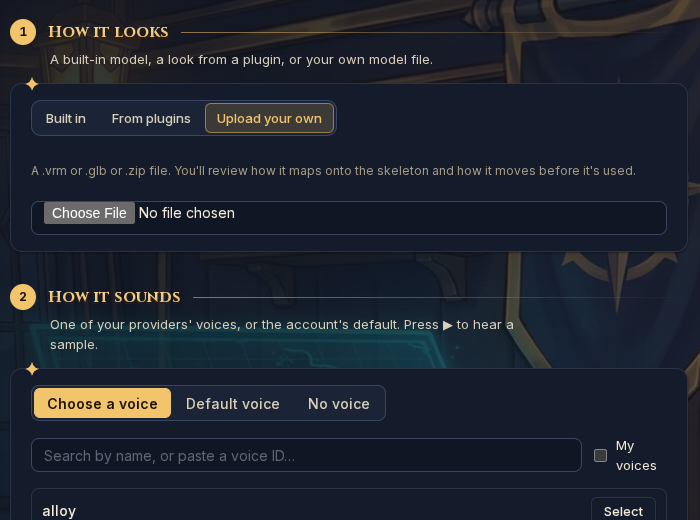
She appears in a small preview. Under Standard motions, choose Feminine or Masculine. This gives her a full set of motions, so you don't need your own.
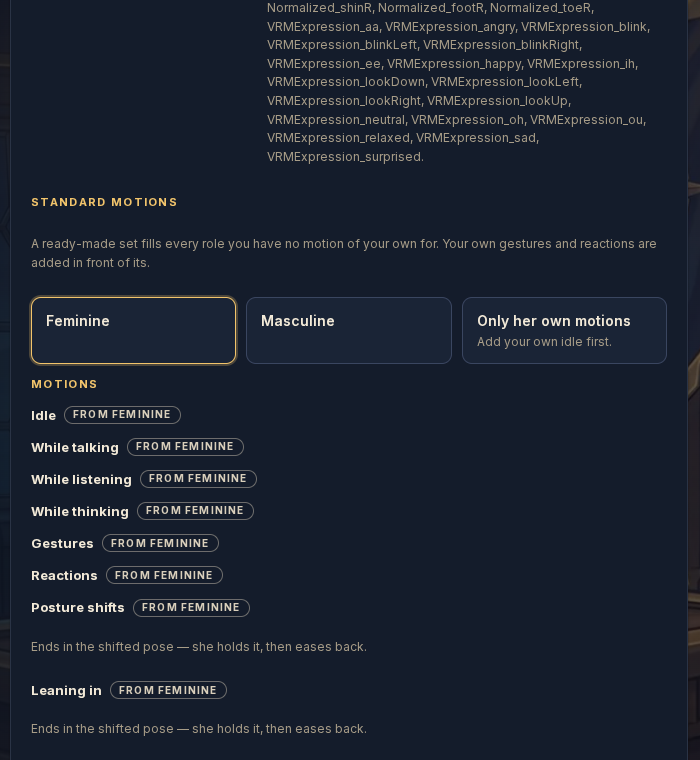
Press Use this file.
Choose a voice, and give her a name and personality. You can change these later.
Press Create, and talk to her.
If the Create step says you've reached your plan's agent limit, choose One of your agents under Who it talks as. Your character then becomes the face of an agent you already have.
Adding your own motions is optional. In the same screen, upload your clips (.vrma, .glb or .fbx) and choose what each one is for, such as Idle or Gestures. Your clips are used first, and the standard set fills the rest.
Outfits she can change between are only available on route 2.
Route 2: Share her with other people
A plugin is just a folder that we read. Our starter folder already has 28 motions and everything set up, so you mostly drop your model in.
Download the 3D starter folder and unzip it.
Copy your model into
companion-models/my-look/and name it exactlymodel.vrm.Name your pack. Open
readme.mdin any text editor (Notepad or TextEdit are fine) and changeMy Companion Packto your own name. It must be unique, soAiko by YourNameis a good pattern.Describe her. Open
companion-characters/my-companion/character.jsonand change the text inside the quotes. Leave thelookline alone.Line What it is nameher name in the gallery vibeone short line on her card soulher personality, in plain sentences instructionshow she should talk Keep the quotes and commas as they are. To get a line break, write
\n, and write\"for a quote inside the text.Zip the folder. Right-click it and choose Compress (Mac) or Compress to ZIP (Windows).
Upload it. In the console, go to Plugins → Created → Upload a plugin and choose your zip.
Try her. Install the plugin, open Companions, find her in the gallery and press Talk.
Share her. On the plugin's page, open the ⋯ menu and choose List in Browse. Until you do, only your account can install her.
To publish a change later, edit the folder and raise version: in readme.md, for example from 1.0 to 1.1. Then zip it and upload it on the plugin's page.
Make her your own
These are all optional. Each one links to the exact settings, and you can ask an AI assistant to make the edit for you. Our docs in plain text give it everything it needs.
| To add | What you do | Read more |
|---|---|---|
| A picture in the gallery | Add thumbnail.png to my-look, and name it in model.json |
Model |
| A room behind her | Add a soft room picture and name it in model.json. It's blurred and cropped to fit |
Background |
| Outfits she can change | Keep each garment as its own mesh, or at least its own material, and list them | Outfits |
| Your own motions | Replace a clip, keeping its file name, or add one to the list in model.json |
Model |
| Tail or ear movement | Export a .glb animation of those bones |
Model |
| Exact camera crops | Say what each Face, Upper body and Full body button shows | Framing |
| A set voice | Suggest a voice from a provider | Character |
Skirts are found automatically when they're a ring of bones under the hips, with at least 4 chains spreading around her. If yours isn't detected, see Hair, cloth and what a garment covers.
Check her before you share her
Most problems only show up in movement, or from angles you don't usually look at.
- Turn the camera and look from the side and behind. Clipping and floating feet hide from the front.
- Play every motion, and watch how each one starts and ends.
- Try every outfit, then wave and lean in each one.
- Try Face, Upper body and Full body in a narrow window as well as a wide one.
- Talk to her and watch her mouth, blinks and eyes.
If something looks wrong
| What you see | Likely cause | What to do |
|---|---|---|
| The mouth doesn't move when she talks | The VRM has no aa, ih, ou, ee, oh mouth shapes, or no voice is set |
Add the shapes and export again, and check she has a voice |
| Hair or a tail hangs stiff | No spring bones on it | Add them in your tool and export again |
| Hair goes through her body, or sticks out | The spring settings need tuning | Change stiffness and gravity in small steps. For long hair, try stiffness 0.8 and gravity 0.15 |
| Skin pokes through her clothes | The garment doesn't sit on a real body mesh, or it fits too tightly | Keep a body mesh under the clothes, and leave a small gap |
| She stays in a T-pose | The file isn't a proper humanoid | Check the humanoid bone setup in your tool |
| She bends strangely in one motion | That clip was made for a very different body or starting pose | Try another clip, or fix its first frame |
| She takes a long time to appear | The file is large | Use 2048-pixel textures, and export again |
When an upload is refused
The message names what's wrong. These are the common ones:
| Message | What it means |
|---|---|
'avatar' names file 'model.vrm', which isn't in the package |
Your model isn't in companion-models/my-look/, or isn't named exactly model.vrm |
a look needs at least one idle, one talkIdle and one gesture motion |
You removed motions she needs. Add them back from the starter |
every motion id must be unique |
The same clip is listed twice in model.json |
| A message about JSON or an unexpected character | A quote or comma was removed from a file you edited. Undo your last change, or paste the file into an online JSON checker |
Words you'll see
| Word | Meaning |
|---|---|
| Look | Her model and motions |
| Character | Her card in the gallery: name, personality and suggested voice |
| Plugin or pack | The folder you upload, which can hold several looks and characters |
| Role | What a motion is for, such as idle, talking or a gesture |
.vrma |
An animation file for VRM humanoids |
The full reference for every setting is Companion packs.